
By PETER LoPINTO
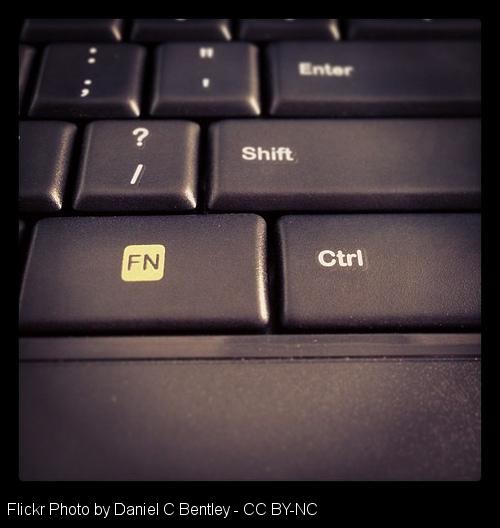 If you’re like me and you find yourself performing the same functions on your computer daily, hotkeys can be a great way to speed up your work or browsing. They often make your computer feel more fluid once you grow accustomed to using them.
The list that I have compiled will have some things that you may find relevant while other hotkeys may seem like something you would never have a reason to use. If you think about what you use your computer for most often, then you should be able to find the most effective hotkeys. For writing, I find that the text hotkeys have become second nature now to navigate quickly within documents.
Finally, if you work in a certain program consistently, take a look at the hotkeys for the functions that you depend upon. Often times, using a hotkey is much faster than clicking around; this saved time can really add up if you spend your work day in the program. Hotkeys are normally listed next to the function when selected within the program’s menu.
• Basics
ctrl + x (cut)
ctrl + c (copy)
ctrl + v (paste)
ctrl + z (undo)
• Form Navigation
tab (go to next field)
shift tab (go to previous field)
• Within Text
ctrl + arrows (move word by word)
ctrl + shift + arrows (select word by word)
ctrl + delete (delete word in front of cursor)
ctrl + backspace (delete word behind cursor)
• General Use
ctrl + a (select all)
ctrl + f (find function)
ctrl + p (print)
• Chrome Specific
ctrl + tab (switch to tab on the right)
ctrl + shift + tab (switch to tab on the left)
ctrl + # (switch to tab based on number [for example ctrl + 3 will choose the 3rd tab from the left])
ctrl + t (new tab)
ctrl + shift + t (open last closed tab)
ctrl + w (close tab)
ctrl + n (new window)
alt + d (moves cursor to address bar, allowing you to type in a web address easily)
• Windows
alt + tab (switch between applications [continually hold down alt, press tab until you find the application you’re looking for])
windows key + D (go to desktop)
windows key + E (open file explorer)
Leave a Reply